This repository has no description
1# Inky
2
3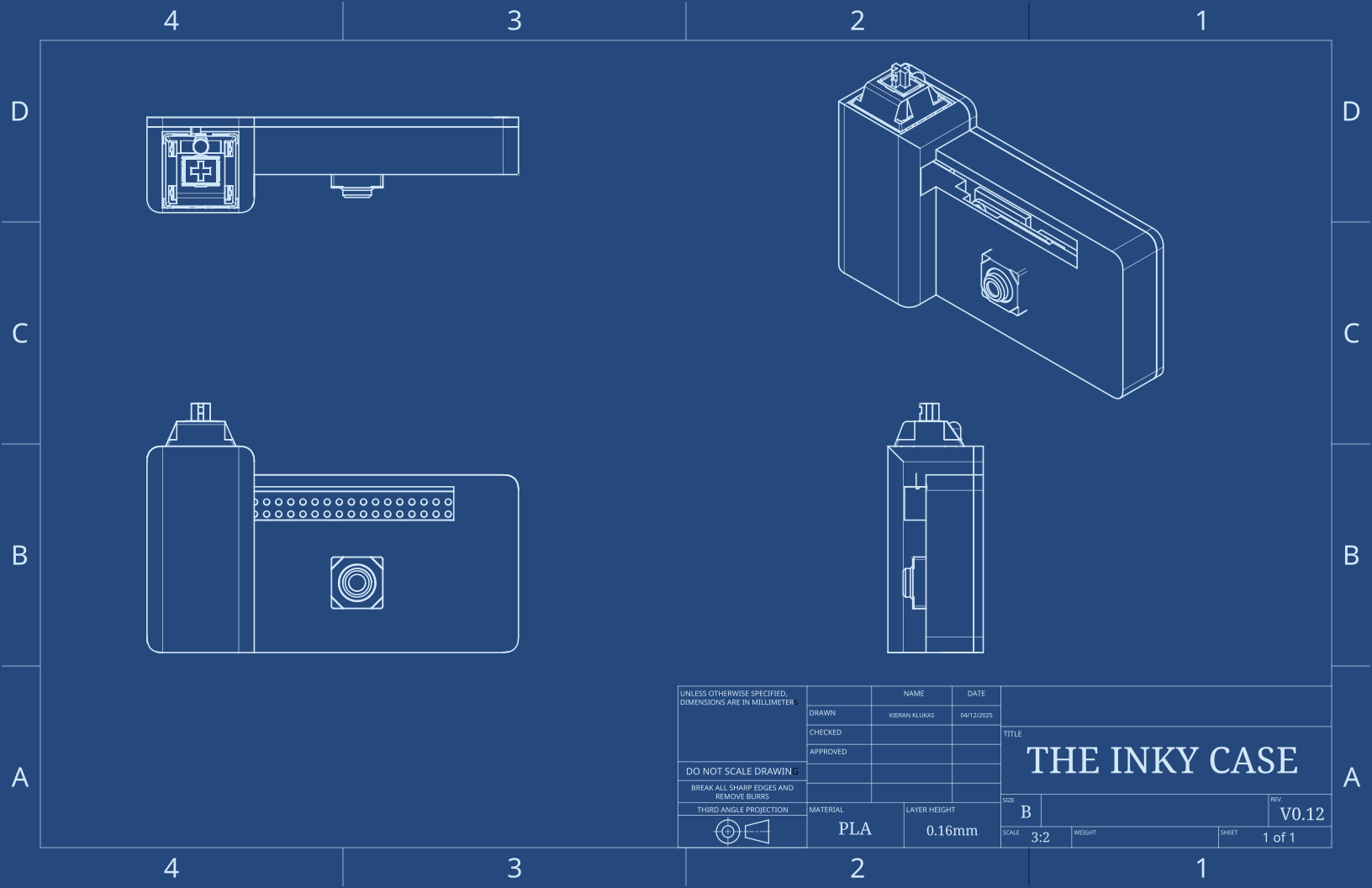
4
5<img src="https://cachet.dunkirk.sh/emojis/inky/r/" width="130" align="right">
6
7> ### More deets coming soon 👀
8> An open-source, eink-based, rpi zero 2 w powered camera.
9
10## Setup
11
12Put raspberry pi os lite 64-bit onto an SD card using the Raspberry Pi Imager and in the configureation step make sure to 1) add your SSH key and 2) set the user:password to `inky:inkycamera`. Oh and also make sure to add your wifi creds so we can update and install packages.
13
14Next you need to configure network over usb so we can ssh in easily and be able to access the photo webserver.
15
16Before sticking the card into the rpi, navigate to the boot partition and edit:
17
18`config.txt` - add to bottom:
19```txt
20dtoverlay=dwc2
21```
22
23and `cmdline.txt` - apphend to the only line:
24```txt
25modules-load=dwc2,g_ether
26```
27
28Create empty `ssh` file in boot partition to enable SSH or just click the button in the RPI Imager gui.
29
30now ssh in:
31```bash
32ssh ink@inkpress.local
33# Default password: inkycamera
34```
35
36The firmware instructions are in [`src/README.md`](src/README.md)
37
38### Troubleshooting
39- Ensure you are using the DATA port, not power-only
40- Some systems may need USB Ethernet gadget drivers
41
42<p align="center">
43 <img src="https://raw.githubusercontent.com/taciturnaxolotl/carriage/master/.github/images/line-break.svg" />
44</p>
45
46<p align="center">
47 <i><code>© 2025-present <a href="https://github.com/taciturnaxolotl">Kieran Klukas</a></code></i>
48</p>
49
50<p align="center">
51 <a href="https://github.com/taciturnaxolotl/inky/blob/master/LICENSE.md"><img src="https://img.shields.io/static/v1.svg?style=for-the-badge&label=License&message=MIT&logoColor=d9e0ee&colorA=363a4f&colorB=b7bdf8"/></a>
52</p>